Developers
Use Postman to call the Share A Refund API
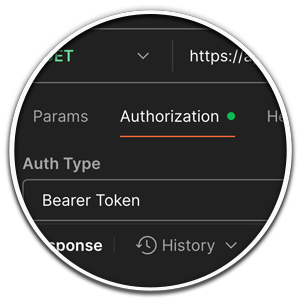
Postman is an app available to developers as a tool to share, test, document & monitor APIs. Get Postman. Making….
Just getting started?
Find instructions specific to obtaining authentication credentials to the Share A Refund API within the developer section of this help center.
Making the connection
1. Launch Postman
2. Specify the endpoint
Direct customer user type
[ship_base_url]/{api_path}
Reseller customer user type
[ship_base_url]/{api_path}
3. Input the required headers
Header: Content Type
Token: Content-Type
Value: application/json
Header: x-api-key
Token: x-api-key
Value: YOUR-API-KEY

Your API Token
API tokens are unique and available upon request. More information on obtaining an API Token is available within the Developer area of the Share A Refund help center.
The figure showcases the location within Postman to enter the required Header values defined in this section.
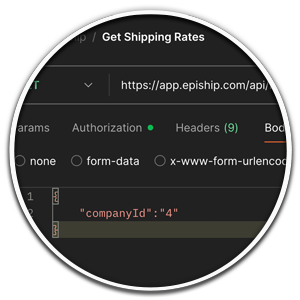
4. Add body for an example request
{
“tracking_number”: “775635651223”
}

Tracking number for testing
Access to shipments and related tracking numbers are specific to your account and the privileges defined by user type.
Ensure that you’re using a valid tracking number that’s available within your Share A Refund account.
The figure showcases the raw body input and associated parameters required.
5. Send request
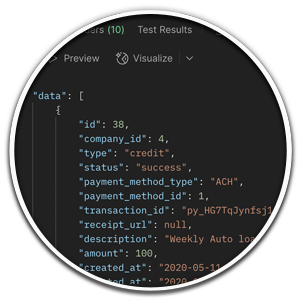
6. Read the response

Exception handling
Invalid access token
Ensure that the access token matches the values defined for your account, and that the requested endpoint is indeed valid.
403 forbidden
Ensure the URL used in making the request, is valid for the your user type.
Missing parameter required
Ensure that formatting of the body input is valid json and matches the parameters defined for the method requested.
Tips for making requests outside of Postman
Put X-API-Key in header In C# and various languages, the token must be placed into the header. Also, try the…
New user tip
Put X-API-Key in header
In C# and various languages, the key must be placed into the header. Also, try the following statement when making a test request.
request.Headers.Add(“x-api-key”, “YOUR_API_KEY”);